Smart Speakers Won’t Group for Multi-Room Audio — Troubleshooting Guide
Smart speakers usually refuse multi-room grouping because they use different home accounts, isolated Wi-Fi networks, outdated software, or incompatible audio standards. Check the grouping requirements in Google Home, Amazon Alexa, or Apple Home first, then restart the network and speakers before deleting anything. Save a factory reset for last.
By Olami Y.
Last updated November 04, 2026
Why won’t your smart speakers form a group?
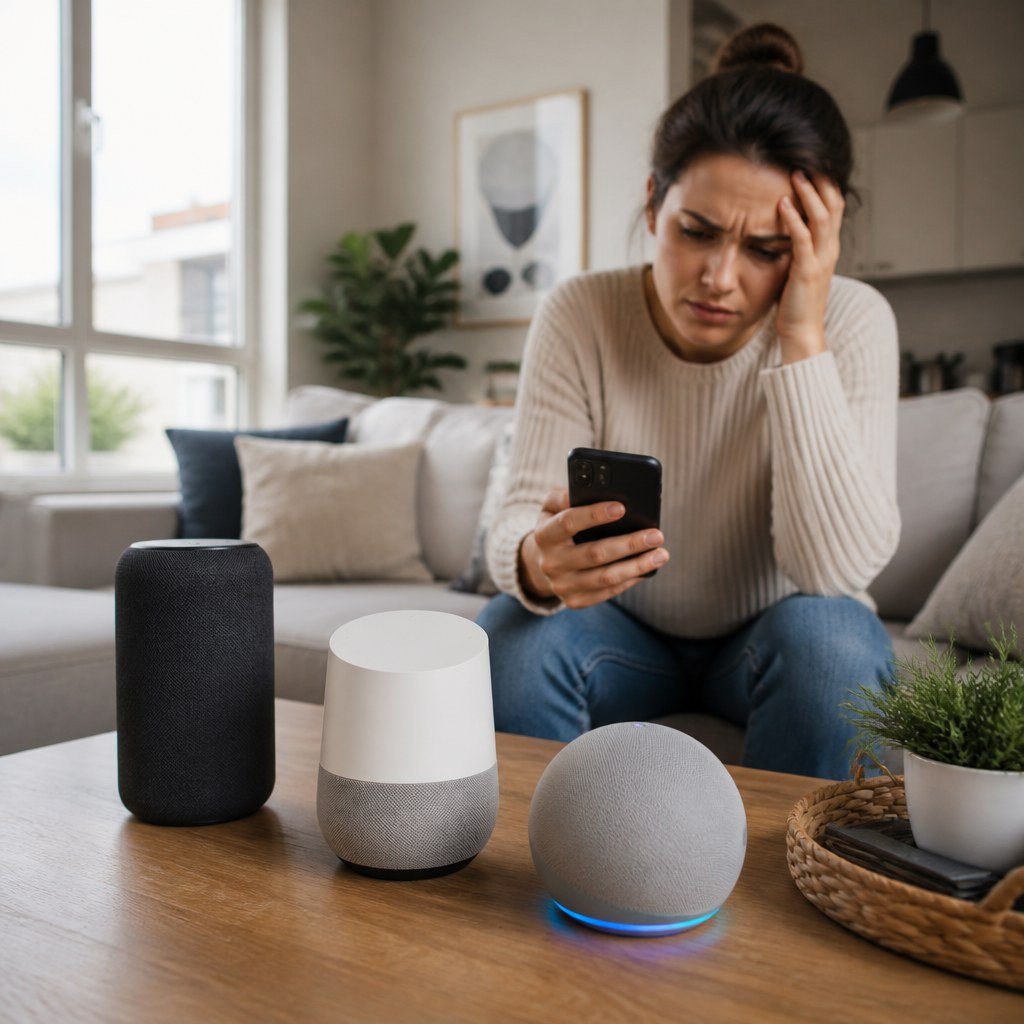
Most grouping failures come from a mismatch in network access, household membership, device support, or software state. A speaker can stream music by itself while still being unavailable for a multi-room group.
Start by identifying the system that controls the group. Google Home speaker groups, Alexa multi-room music groups, and Apple AirPlay 2 rooms follow different rules. A music app may display several speakers, but that does not mean those devices can form one native group.
Network separation
Guest Wi-Fi, access-point isolation, or separate router networks can prevent speakers from discovering one another.
Account mismatch
A device assigned to another household, home, or account may not appear in the group editor.
Unsupported combination
Bluetooth speakers and older models may play individually without supporting the platform’s synchronized audio feature.
Our guide to smart home hub compatibility can help you separate a setup error from a genuine platform limitation.
How do you fix multi-room grouping?
Use this sequence from least disruptive to most disruptive. Test the group after every step so you know which change solved the problem.
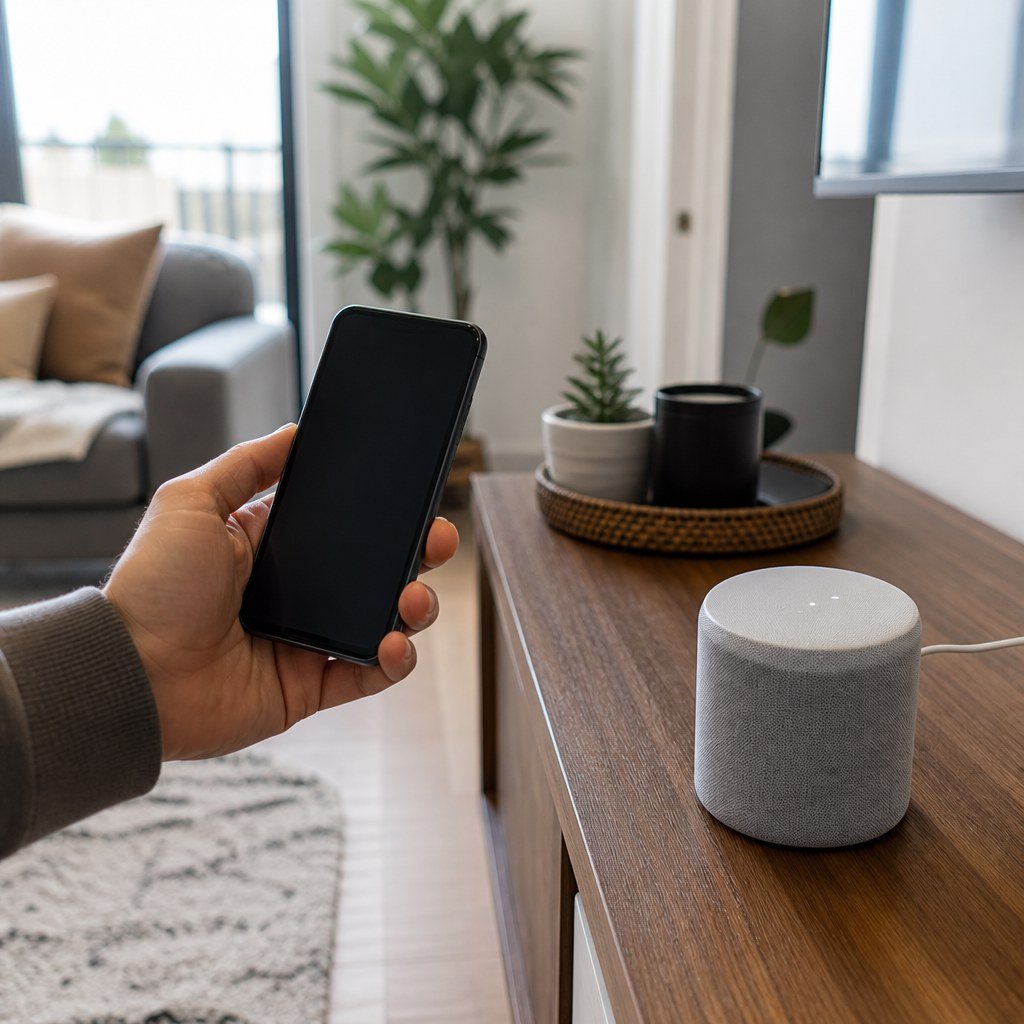
- Confirm that every speaker appears online in the same control app. If one is missing or marked unavailable, fix that device before rebuilding the group.
- Check that all speakers belong to the same home or household and use the intended account. Household members may have different permissions, so create the group from the account that originally configured the devices when possible.
- Connect your phone and speakers to the same local network. A 2.4 GHz speaker and a 5 GHz phone can usually communicate when both bands share one local network, but guest networks or router isolation settings may block discovery.
- Disable any phone VPN temporarily, reopen the home-control app, and check again. Also allow the app’s local-network permission in your phone settings if the operating system offers that control.
- Update the control app and check each speaker for pending firmware updates. Google, Amazon, and Apple publish current update instructions in their official support material; menu names can change with app versions.
- Restart the router, wait until its internet and Wi-Fi indicators return to their normal state, and then unplug each affected speaker. Reconnect the speakers after about 30 seconds and allow them time to come online.
- Delete the failed group and create a new group with a different name. Add 2 speakers first. If that works, add the remaining devices one at a time to identify the speaker or combination causing the failure.
- Remove only the problem speaker from the home app, then add it again. This may erase its room assignment and personal settings, so record anything you want to restore.
- Factory-reset a speaker only after checking the manufacturer’s current reset instructions. Reset methods differ by model, and the device must be configured again from the beginning.
💡 Do not split speakers between a modem-router and a second router unless the second device is configured as an access point. Two routers can create separate local networks even when both provide internet access.
For router placement and wireless dead zones, see our Wi-Fi setup guidance for smart home devices. Renters can also use our renter-friendly smart speaker placement ideas without drilling or moving network cabling.
What does each symptom tell you?
The point at which grouping fails usually identifies the cause. Use the symptom before changing more settings.
How do you verify the repair?
A successful group should remain available and synchronized after you close the app. Play spoken audio because timing errors are easier to hear in speech than in steady music.
- Start playback from the home-control app rather than a third-party music app.
- Walk between adjacent rooms and listen for echoes or dropouts.
- Adjust the group volume, then confirm that each speaker responds.
- Stop playback and start it again with a voice command, if supported.
- Recheck the group after the speakers have been idle.
If native playback works but one music service fails, reconnect that service account instead of rebuilding the speaker group again.
When should you contact support?
Contact the speaker manufacturer when a supported device stays absent after reinstallation, cannot finish setup, or repeatedly leaves every group. Provide the model, software version, router model, and exact error message.
If several device brands disappear at once, the router is the stronger suspect. Check its documentation for guest isolation, client isolation, multicast filtering, or wireless device limits. Choose manufacturer support for one failing speaker; choose your internet provider or a network technician when unrelated devices cannot see one another.
Before replacing a speaker, check the device combination with the Domoviq Compatibility Checker, then retry the 2-speaker group test.