
Smart Doorbell Keeps Losing Wi-Fi — Placement and Fix Guide
A smart doorbell that keeps losing Wi-Fi usually has a weak signal at the exterior wall, interference from metal or masonry, or unstable power. Reposition the router or mesh node, test the 2.4 GHz band, then check signal strength in the doorbell app. The Wi-Fi Alliance describes 2.4 GHz as the longer-range option.
By Olami Y.
Last updated November 07, 2026
Why does the doorbell keep disconnecting?
Most repeated disconnects come from signal loss, power interruptions, or router settings that the doorbell cannot use reliably.
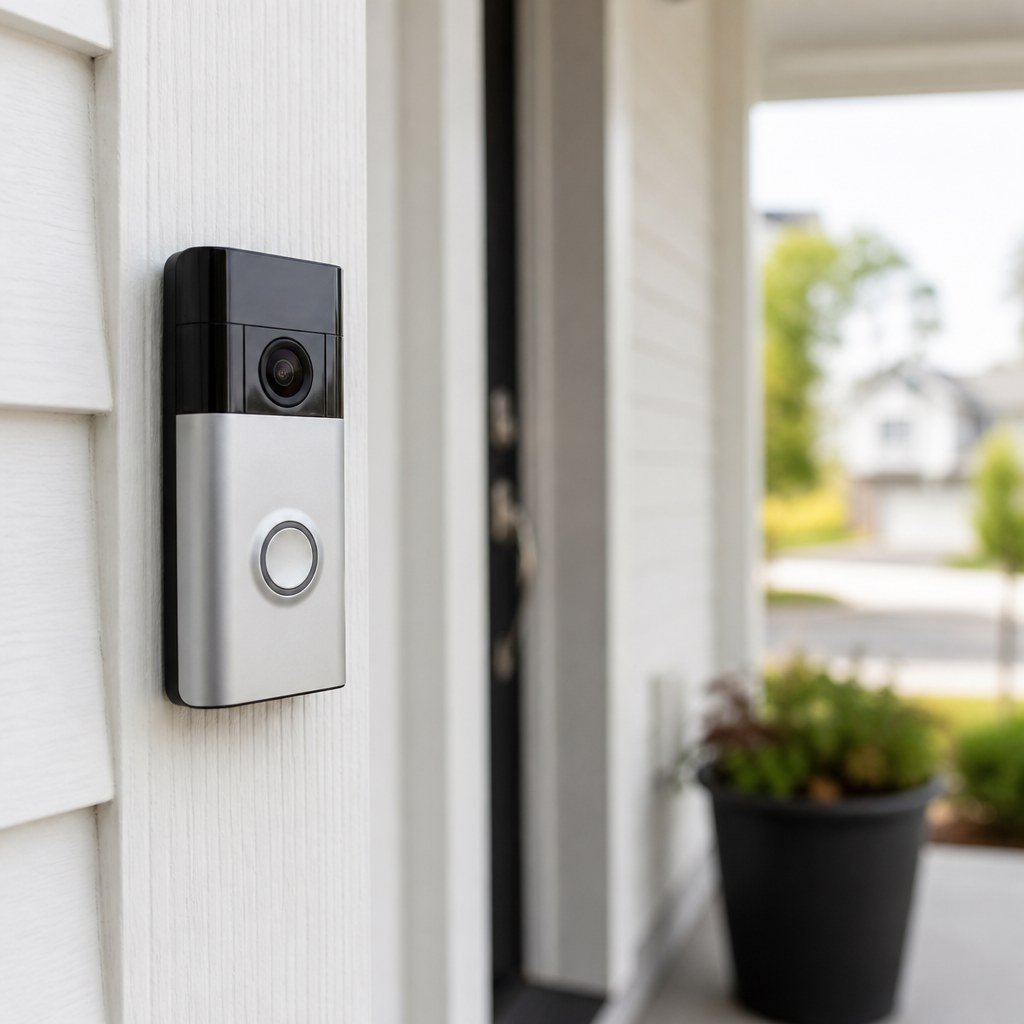
Your phone may show full Wi-Fi at the front door while the doorbell struggles. Phones have different antennas, and you are probably holding yours inside or away from the wall. The doorbell sits against brick, stucco, metal siding, a steel junction box, or a foil-backed wall that can weaken radio signals.
Look for the pattern before changing anything:
- If live view fails mainly at busy evening hours, network congestion or limited upload capacity may be involved.
- If the device goes offline during cold weather or after frequent motion events, check its battery and power status.
- If it disconnects after router updates or replacement, verify the Wi-Fi name, password, security mode, and supported band.
- If it reboots when the existing chime operates, the wired power supply deserves attention.
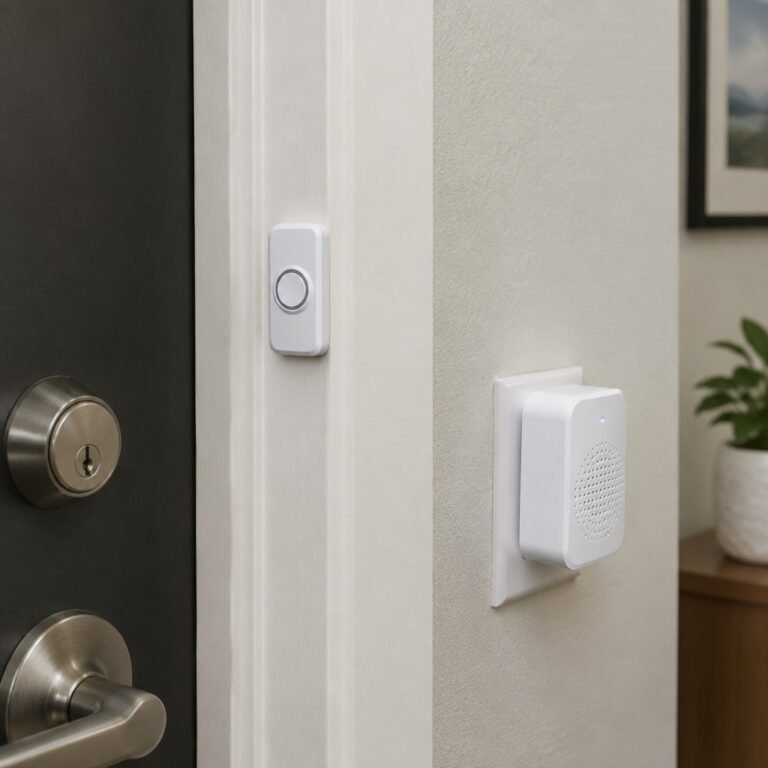
Our camera and doorbell placement coverage can help if the view, motion zones, and wireless position all need adjustment.
Where should the router or mesh node go?
Place it inside the house, near the front entry, with as few dense or metal obstacles as possible between it and the doorbell.
Choose 2.4 GHz if the signal must travel farther or pass through several obstacles. Choose 5 GHz if the doorbell supports it and sits close to a router or node. Check the manufacturer’s current support page because band compatibility differs by model.

What should you try first?
Start with reversible changes, test after each one, and avoid buying an extender until you know placement is the problem.
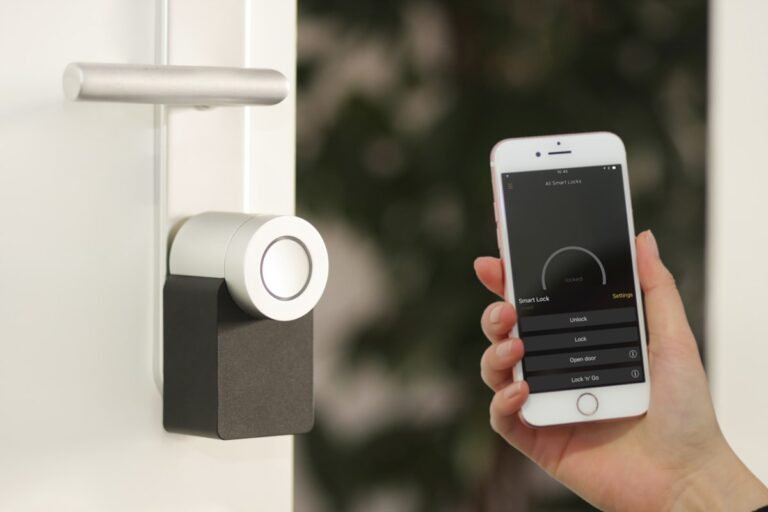
- Open the doorbell app and record its signal, battery, voltage, and connection status if those details are available. If the app reports RSSI, a value closer to 0 represents a stronger received signal; compare your before-and-after readings rather than relying on one universal cutoff.
- Restart the modem and router according to the internet provider’s instructions, wait until internet service returns, and then restart the doorbell through its app or documented reset procedure.
- Move the router or a mesh node temporarily closer to the entry. Test live view, notifications, and recorded events for at least a day before making the position permanent.
- Connect the doorbell to 2.4 GHz if your model supports it and the current 5 GHz connection is weak. Do not disable Wi-Fi encryption or create an open network as a workaround.
- Update the router, mesh system, doorbell app, and doorbell firmware using their official update controls. Confirm that automatic time and date settings are correct.
- Check whether a new appliance, baby monitor, access point, or metal decoration appeared near the route between the router and doorbell. Move one item at a time and retest.
- Use a mesh node or extender only after a closer router test improves reliability. Put an extender where it receives a good source signal, not in the dead zone beside the door.
💡 Test with the front door both open and closed. A metal door can produce a large difference that an indoor phone test misses.
Renters should check our renter-safe no-drill mounting ideas before relocating a battery doorbell. Avoid drilling, adhesive changes, or removal of shared-building equipment without written permission.
Could power look like a Wi-Fi problem?
Yes. A doorbell that loses power, overheats, or repeatedly reboots can appear offline even when wireless coverage is adequate.
Charge a battery model fully and inspect the app for temperature or battery warnings. For a wired model, check the manufacturer’s documented voltage or power-status screen. Do not assume an existing transformer meets the requirements of a replacement doorbell; confirm the exact model specifications.
⚡ Safety: Stop if wiring is damaged, the transformer is hot, or work would involve a breaker panel or mains-voltage connections. Ask a licensed electrician to diagnose or replace the transformer.
Our smart home hub compatibility guidance is useful if disconnections began after adding a new router, hub, or network security setting.
How do you know the fix worked?
A successful fix keeps live view, alerts, and recordings available under the same conditions that previously caused failures.
Repeat tests in daylight, after dark, and while other household devices are streaming. Ring the bell, trigger motion from the edge of the detection area, and review the app’s device-health page. Keep the new position only if signal readings and real use both improve.
If every device near the entry loses service, focus on the home network. If only the doorbell fails despite strong measured signal and stable power, contact the manufacturer with timestamps, app diagnostics, router model, and firmware versions.
Common questions
Will changing my router disconnect the doorbell?
It may, unless the new router uses compatible settings and the same network name and password. Follow the doorbell maker’s reconnection process if it stays offline.
Can a Wi-Fi extender make the connection worse?
Yes. An extender placed in a weak-signal area repeats a poor connection. Move it closer to the router or choose a wired-backhaul mesh point where practical.
Should I factory-reset the doorbell?
Use a factory reset last. It can erase settings and require account or ownership verification, so save any needed recordings and follow the model-specific instructions first.
Start by recording your current signal and moving one router or mesh node today; use the Domoviq tools hub if you need help planning the rest of your smart-home setup.