Why Won’t My Smart Home Device Connect to Wi-Fi? (2026)
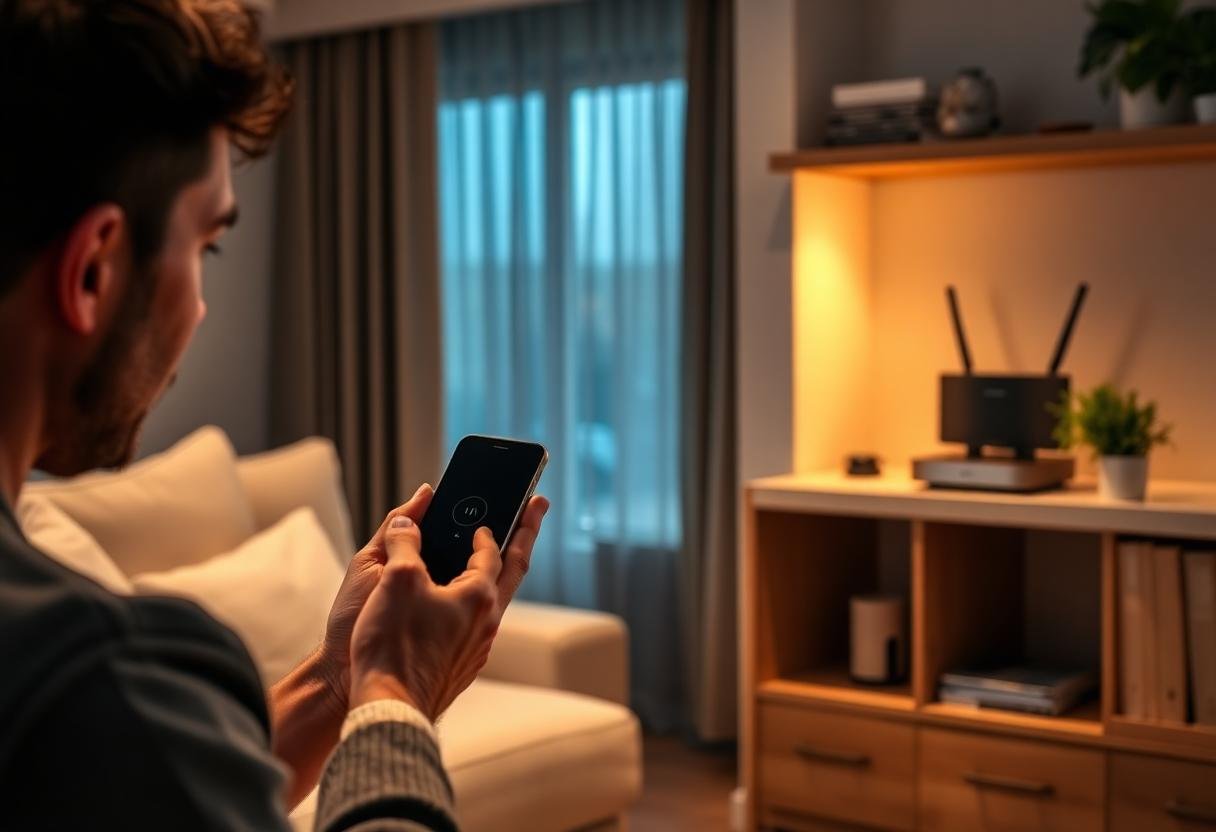
Most smart home devices refuse to connect because they’re being offered the wrong Wi-Fi band, a weak signal, or a router setting built for laptops and phones rather than IoT gear. The device itself is rarely broken — in the large majority of setup failures, the fix is on the network side, not inside the plug, bulb, or camera. That’s true whether you’re on Alexa, Google Home, Apple Home, or a no-name app that came in the box.
Here’s how to work through the actual causes in order, starting with the one that trips up more people than everything else combined.
Why won’t a smart device join Wi-Fi during setup?
Almost every new smart plug, bulb, and sensor only supports 2.4GHz Wi-Fi, and most home routers now broadcast 2.4GHz and 5GHz under one combined network name. When your phone connects to the 5GHz side (which it usually prefers because it’s faster) and hands your Wi-Fi password to a device that can only see 2.4GHz, the pairing step times out or fails silently. This single mismatch causes more failed setups than router placement, weak passwords, or firmware bugs combined.
Is your device trying to join the wrong Wi-Fi band?
Check whether your router is broadcasting one combined SSID or two separate ones. If you only see one network name in your phone’s Wi-Fi list, your router is band-steering — merging 2.4GHz and 5GHz automatically — and that’s the first thing to change for setup purposes.
- Log into your router’s admin app or web page (usually 192.168.1.1 or a brand app like Eero, Nest, or Orbi).
- Find the wireless settings and temporarily split the bands into two separate names, such as “HomeNet” and “HomeNet-5G.”
- Connect your phone to the 2.4GHz network specifically before opening the device’s setup app.
- Once the device joins successfully, you can usually re-merge the bands — most devices stay connected to whichever band they originally joined.
Could your router settings be blocking the device?
Several default router settings exist specifically to keep unfamiliar devices off your network, and smart home gear trips all of them. The table below covers the ones worth checking before you assume the device is defective.
| Router setting | Why it blocks smart devices | Fix |
|---|---|---|
| MAC address filtering | Only pre-approved device addresses are allowed onto the network | Add the device’s MAC address to the allow list, or disable filtering during setup |
| Guest network isolation | Guest networks often block device-to-device traffic your hub or phone needs | Set up devices on your main network, not the guest network |
| AP (client) isolation | Prevents devices on the same Wi-Fi from talking to each other, which breaks local discovery | Turn off AP isolation for the network your smart devices use |
| WPA3-only security | Older IoT chipsets only support WPA2 and can’t negotiate a WPA3-only connection | Switch to WPA2/WPA3 mixed mode, not WPA3-only |
Is the signal too weak where the device sits?
A device can show “connected” during setup and still drop constantly if it’s sitting at the edge of your router’s range. Smart plugs behind entertainment centers, doorbells at the far end of a driveway, and sensors in detached garages are the usual offenders. Signal strength that’s fine for a phone you’re actively holding can be too weak for a low-power IoT radio to hold a stable link. A Wi-Fi extender, a mesh router node, or simply relocating the device a few feet closer to the router resolves most of these cases.
Could the problem be the device or app, not your network?
If other devices connect fine on the same network, the fault is more likely the specific device, its app, or a bug in that firmware version. Outdated companion apps are a frequent, boring cause — Alexa, Google Home, and third-party apps like Tuya or SmartLife push updates that fix connection bugs regularly, and an app that’s a few versions behind can fail to pair correctly even when the network is healthy. Bluetooth also plays a role during initial setup on many devices, so a phone with Bluetooth turned off can stall the pairing step before Wi-Fi even comes into play.
How do you reset a device that won’t connect at all?
A full factory reset clears out a bad pairing attempt and is worth doing before you assume the device is defective. Hold the physical reset button (usually a small pinhole) for 5–10 seconds until the LED pattern changes to a fast blink or a specific color sequence — check the manual for your exact model, since timing varies. Then close and reopen the setup app, confirm your phone is on the 2.4GHz network, and start pairing again from scratch rather than trying to “reconnect” a half-paired device.
Frequently asked questions
Why does my smart plug keep failing during setup even after a reset?
The most common remaining cause is a 5GHz-only phone connection or a VPN app running in the background — both interfere with the local discovery step. Turn off any VPN, confirm you’re on 2.4GHz, and try again with Bluetooth enabled on your phone.
Do I need to turn off 5GHz Wi-Fi to add a smart device?
No — you don’t need to disable 5GHz entirely. You just need your phone connected to the 2.4GHz band during the setup step itself, since that’s the band most smart home devices broadcast on when looking for a network to join.
Can a firewall or parental control app block a smart home device?
Yes. Router-level firewalls, parental control profiles, and some mesh systems’ “new device approval” features can silently block first-time connections. Check your router app for a pending-devices or blocked-devices list before troubleshooting the device itself.
Why does my device connect, then drop a few minutes later?
This pattern usually points to weak signal strength or router-side band steering kicking in mid-session and pushing the device toward 5GHz, which it can’t use. A mesh node closer to the device, or disabling band steering, typically fixes it.
Should I put smart home devices on a separate Wi-Fi network?
Many households do this for security and stability reasons — isolating IoT traffic from laptops and phones. It’s a reasonable step once your devices are working reliably, but it adds a layer of complexity that isn’t necessary just to solve an initial connection failure.
Last updated: September 2026
Next: if Wi-Fi problems keep coming back once several devices are connected, see how to reduce smart home Wi-Fi congestion with too many devices, or start from scratch with how to set up a smart home step by step.