Smart Thermostat Stuck on “Waiting” — What That Actually Means
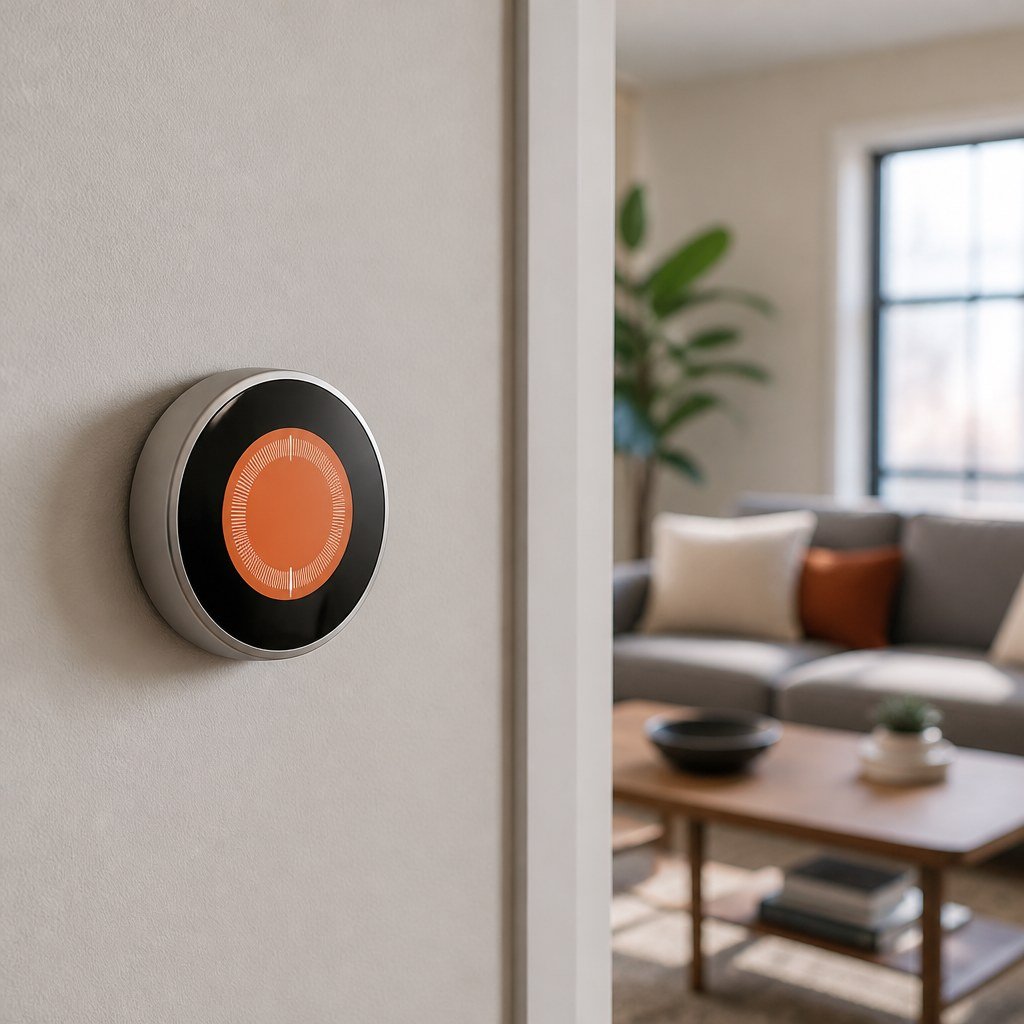
A smart thermostat showing “Waiting” is usually enforcing a short compressor-protection delay, not reporting a Wi-Fi failure. Google Nest documentation describes this as a delay of a few minutes. Let the timer finish; if the message persists, check power, wiring, system mode, and HVAC faults before resetting anything.
By Olami Y.
Last updated November 06, 2026
🔍 Researched & cross-checked — not yet hands-on tested
What does “Waiting” mean on a thermostat?
“Waiting” usually means the thermostat has postponed an HVAC command to protect the equipment or finish an internal process.
Air conditioners and heat pumps use a compressor. Restarting that compressor immediately after it stops can place extra pressure on the system, so thermostats commonly impose a short delay between cycles. You may see “Waiting,” “Delayed,” “Wait,” or a countdown while this protection is active.
The message can also appear after a power interruption, thermostat restart, mode change, or configuration update. Some models use similar wording while they confirm equipment status. The exact definition depends on the manufacturer, so check the current support page or manual for your model.
💡 Quick check: If the thermostat recently restarted and shows a countdown, leave it alone until the countdown ends. Repeated resets can restart the delay.
How long should you wait?
A normal protection delay usually clears within several minutes.
Google Nest describes its delayed-start message as lasting a few minutes. Other brands may set a different interval, and the displayed timer is the best guide when one appears. Do not repeatedly lower the target temperature in an attempt to force the air conditioner on; that does not bypass compressor protection.
Treat the message as a fault if it remains after the displayed countdown, returns every time the system tries to start, or accompanies a blank screen, unusual sound, burning smell, water leak, or tripped breaker.
What should you check first?
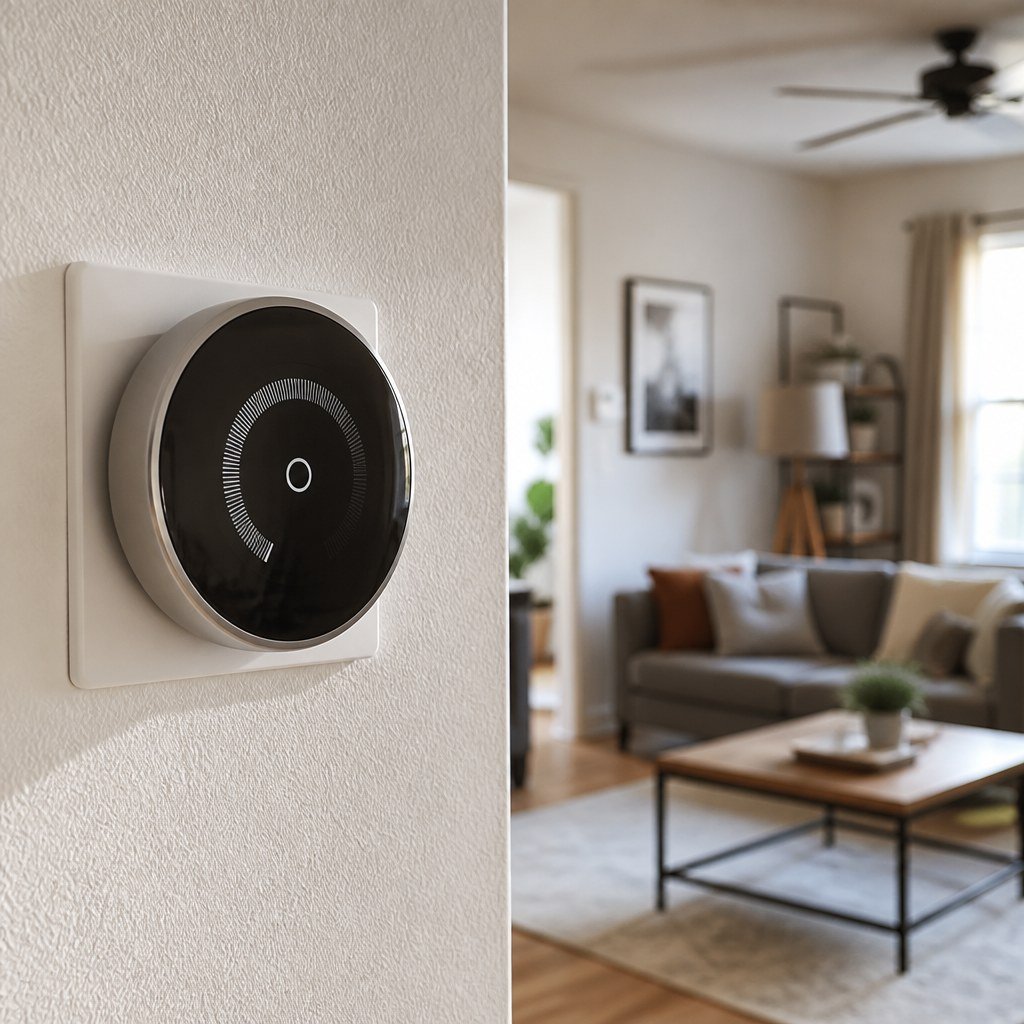
Start with the thermostat screen and basic system controls before touching any wiring.
- Wait for at least the full displayed countdown, then note whether the message clears or immediately returns.
- Confirm that the thermostat is set to Heat or Cool rather than Off, and set the target beyond the current room temperature.
- Check whether the thermostat reports another alert, such as low power, disconnected equipment, or a service reminder.
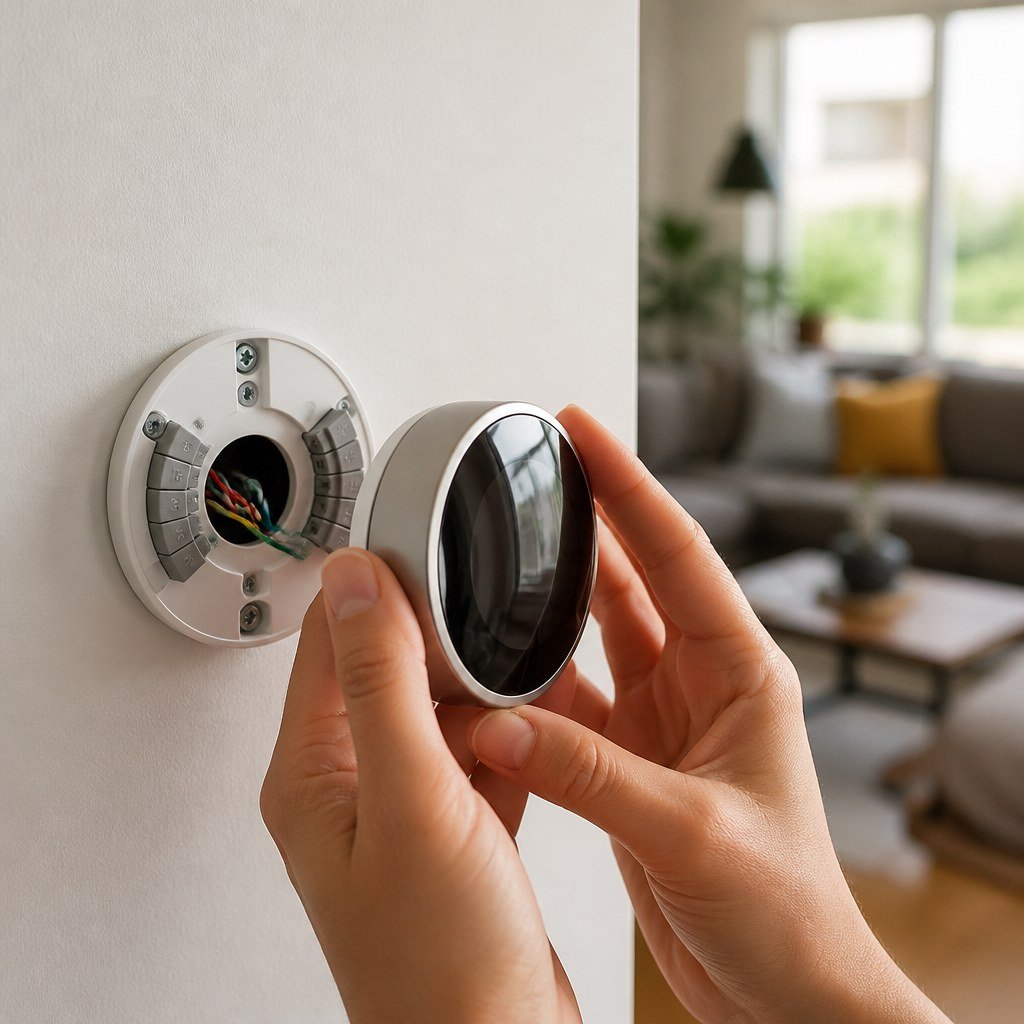
- Make sure the thermostat display is firmly seated on its wall plate if the manufacturer designed it as a removable unit.
- Check the HVAC service switch and circuit breaker. Reset a tripped breaker only once. If it trips again, leave it off and call a licensed HVAC technician or electrician.
- Inspect the air filter if you can access it without opening an electrical compartment. Replace a visibly clogged filter with the size and type specified for your system.
- Check the indoor unit and nearby drain area for water. A condensate safety switch may stop cooling when the drain backs up.
If you rent, stop before removing panels or altering thermostat conductors. Contact your landlord or maintenance team, and take a photo of the message first. Our renter-safe smart climate upgrades coverage follows the same rule: preserve the original setup and get written approval before changing fixed HVAC controls.
Why does the message keep coming back?
A recurring “Waiting” message often points to unstable power or an HVAC system that starts and stops too quickly.
Power interruption
A loose thermostat connection, weak transformer, or missing common wire can cause reboots. Our smart thermostat wiring coverage explains why power requirements differ by model.
Short cycling
If heating or cooling starts and stops within short intervals, the thermostat may repeatedly apply its protection delay. Dirty filters and equipment faults can contribute.
Configuration mismatch
Incorrect equipment settings can produce failed calls for heating or cooling. Heat-pump settings deserve special care because incorrect control can affect auxiliary heat.
System lockout
A furnace, heat pump, or condensate switch may block operation even though the thermostat is requesting it. Equipment diagnostic lights can help a technician identify the cause.
Should you restart or reset the thermostat?
Restart the thermostat only after the normal waiting period has passed; avoid a factory reset until you have recorded every equipment setting.
A standard restart may clear a temporary software state, but it also begins another startup delay. Follow the manufacturer’s instructions for your exact model rather than pulling wires or rapidly switching breakers.
A factory reset erases schedules, account connections, and HVAC configuration on many thermostats. Choose a restart if the display responds but appears stuck. Choose a factory reset only when official model-specific instructions call for it and you know how to restore the original equipment configuration. Our smart home hub compatibility guidance can help later if a reset disconnects automations, but platform reconnection will not repair an HVAC fault.
⚡ Safety: Do not work inside an HVAC cabinet or handle thermostat conductors with power on. Line-voltage thermostats and repeated breaker trips require a licensed professional.
How do you know the problem is fixed?
The fix is confirmed when the delay clears once and the system completes a normal heating or cooling cycle.
Set a modest temperature change, wait without adjusting it again, and listen for the indoor equipment to start. Confirm that conditioned air reaches the vents and that the thermostat remains powered. Then return the target to your preferred setting.
Call a licensed HVAC technician if the message returns, the equipment will not start, or the system shuts down again. Also stop immediately for a burning odor, buzzing electrical sound, visible water near electrical parts, or repeated breaker trip. Your next action should be simple: note the exact message and model number, then let the countdown finish once before changing anything.
Use the Domoviq tools hub for practical help with your next smart-home troubleshooting decision.