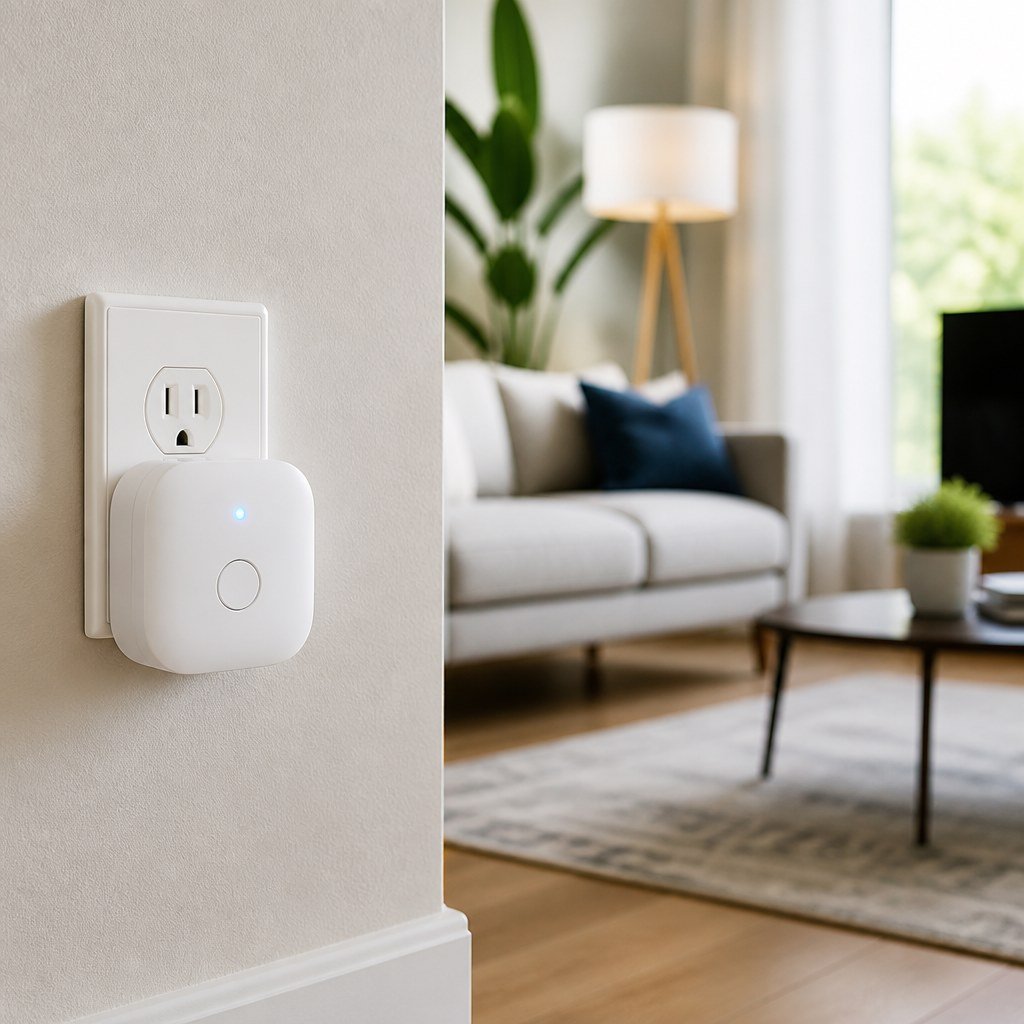
Matter Device Won’t Pair After a Firmware Update — Troubleshooting
If a Matter device stops pairing after firmware updates, restart the device, phone, controller, and router before resetting anything. Then confirm Bluetooth, local-network permissions, and the correct Matter fabric. If pairing still fails, remove stale device records and factory-reset the device using its manufacturer’s instructions. The Connectivity Standards Alliance defines the commissioning framework.
By Olami Y.
Last updated November 07, 2026
Why does firmware break Matter pairing?
The update may expose a stale network record, change the device’s commissioning state, or leave one part of your smart home running older software.
Matter pairing, also called commissioning, adds a device to a Matter fabric—the trusted group containing your controllers and connected devices. Commissioning generally begins through Bluetooth, then transfers the credentials needed for the device’s Wi-Fi or Thread connection.
A failed update or interrupted restart can leave the accessory visible but unable to finish that handoff. The controller app may also retain an incomplete device entry. Common symptoms include:
- The app finds the device but times out during setup.
- The QR code scans, yet the app says the device already exists.
- A Thread accessory reports a network or border-router error.
- The device pairs in one ecosystem but cannot be added to another.
- The status light never returns to its documented pairing pattern.
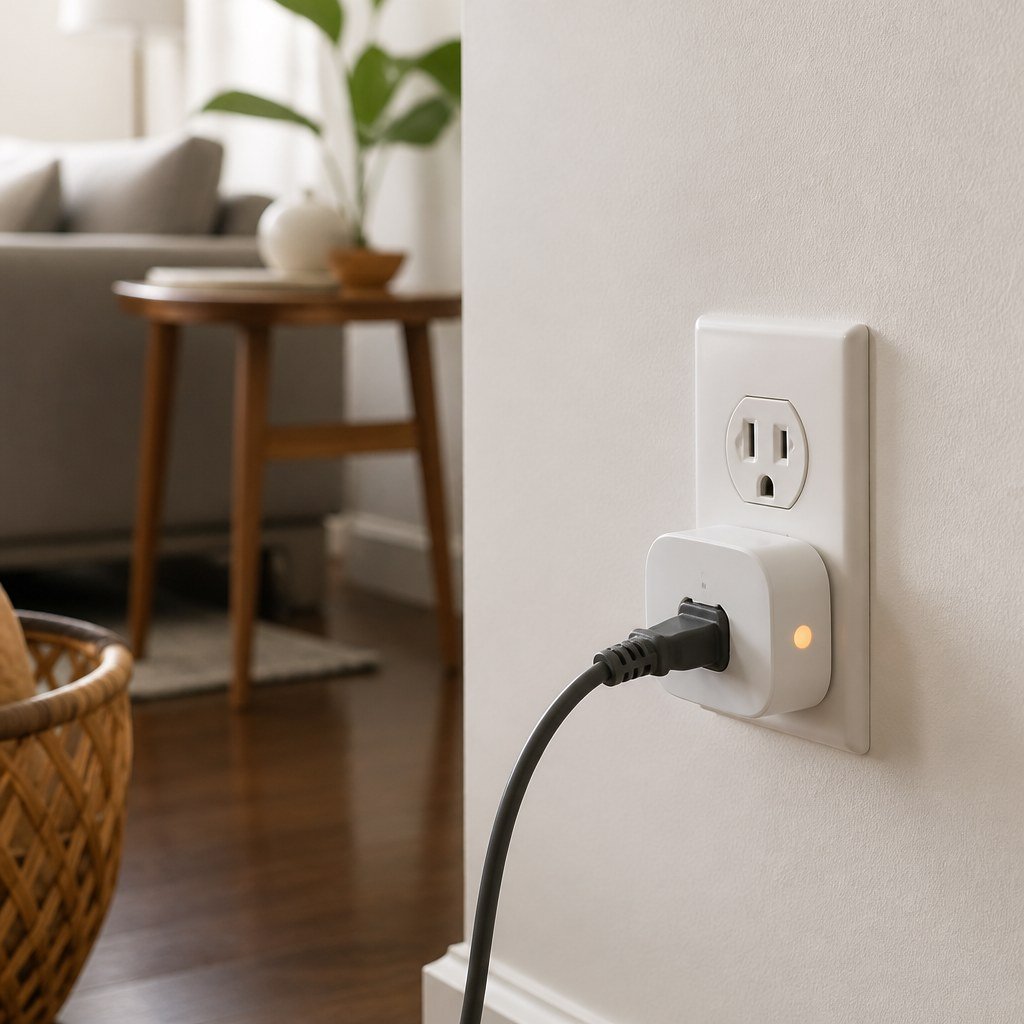
What should you try before a factory reset?
Restart the system in a controlled order and check the phone’s permissions before erasing the device.
- Close the commissioning app and confirm that your phone’s Bluetooth and local-network access are enabled for it.
- Restart your phone, then reopen the app under the same account and home used before the update.
- Power-cycle the Matter device according to its manual. For mains-powered products, disconnect power only if the manufacturer permits it.
- Restart the Matter controller, such as the hub or speaker that manages the home.
- Restart the router and any separate Thread border router, then allow the network to come back fully before trying again.
- Place the phone near the accessory and scan the original QR code in good light. Enter the numeric code manually if scanning fails.
- Check the manufacturer’s app for another firmware release or a recovery message. Also update the controller app and phone operating system through their official update screens.
Avoid repeated rapid pairing attempts. A device may need time to leave its temporary commissioning session before it advertises again.
For Wi-Fi accessories, verify that the network matches the bands and security settings listed by the manufacturer. Guest networks and client-isolation settings can block local discovery. Matter relies on local IPv6 networking and service discovery, so aggressive router filtering may also interfere.
For Thread accessories, confirm that a compatible Thread border router is online in the ecosystem doing the commissioning. Our smart home hub compatibility coverage and Thread border router placement advice can help you identify which box performs that role.
How do you clear a stale Matter record?
Remove the failed accessory entry from the controller app first, then reset the physical device only if it still refuses to enter pairing mode.
Open the home or device list and look for an offline, unnamed, or partially added accessory. Delete that record and wait for the app to synchronize. If the device remains attached to another platform, remove it there too—or use that platform’s Matter sharing process to create a fresh commissioning code.
A factory reset erases the device’s network credentials and Matter fabric membership. The button sequence varies by model, so use the current support instructions from the manufacturer rather than holding buttons at random. After the reset, verify the documented light or sound pattern before scanning the code.
If you are troubleshooting a plug or switch, our smart plug and switch setup guidance covers safe power checks. Renters can also consult our renter-friendly smart home upgrades before altering installed equipment.
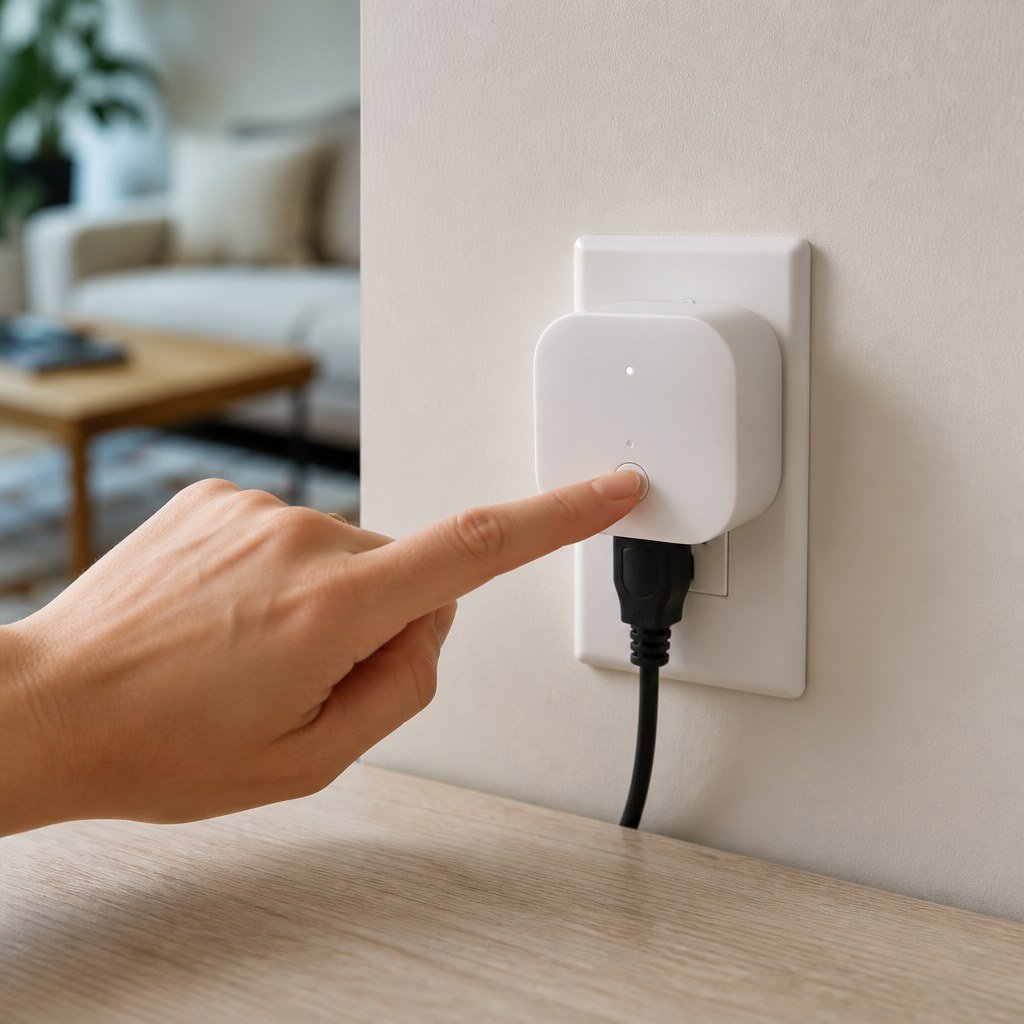
How can you identify which part is failing?
The point where setup stops usually tells you whether the accessory, phone, controller, or network is responsible.
Choose a device reset if one accessory fails while other Matter products pair normally. Choose controller and network troubleshooting if several accessories stop commissioning at the same time.
When should you contact the manufacturer?
Contact support when the device cannot enter documented pairing mode after a confirmed factory reset, or when the failure began immediately after a named firmware version.
Send the model number, firmware version, controller model, phone operating system, and exact error text. Include where setup stops and whether another Matter accessory can pair through the same controller. That evidence is more useful than saying the device “doesn’t work.”
Do not discard the packaging or setup-code label while a support or warranty request is open. Ask whether the firmware has a known commissioning issue and whether a recovery release is available. If the product controls a lock, alarm, HVAC system, or hardwired load, keep a safe manual fallback until pairing is restored.
Your next action should be one clean attempt: restart the phone, controller, router, and device in that order, then record the exact screen where commissioning fails.
If you need help mapping the controllers and devices in your setup, use the Domoviq tools hub before buying replacement hardware.