Smart Bulb Won’t Respond to Voice Commands — Fix List
Start by confirming the bulb has power, then test it in its manufacturer’s app. If the app works, repair the voice-assistant link, room assignment, or bulb name. If it does not, restart the bulb and router before resetting anything. Use Google Home or Amazon Alexa device status to narrow the fault.
By Olami Y.
Last updated November 06, 2026
Where is the command failing?
The manufacturer’s app tells you whether the problem sits with the bulb or the voice assistant.
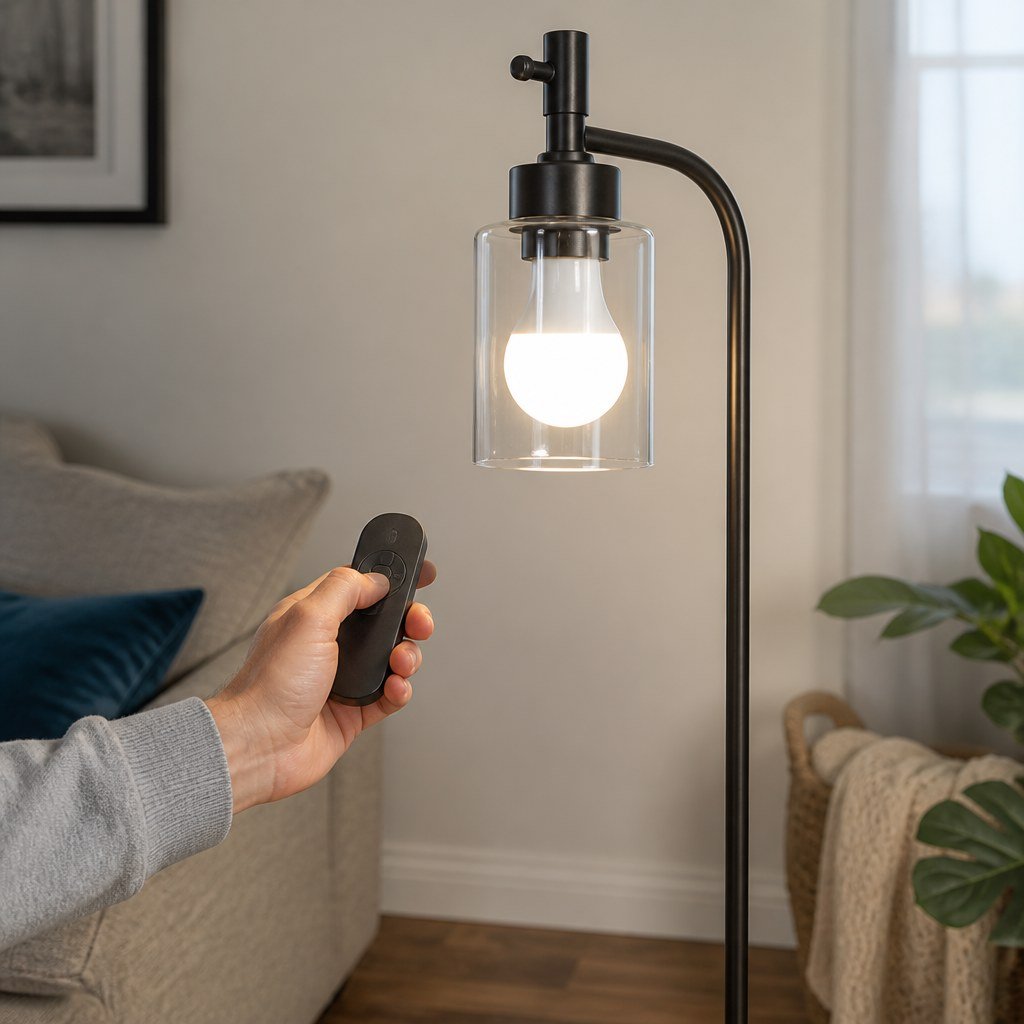
Turn the wall switch on and leave it on. Open the bulb maker’s app, then try switching the light on or changing its brightness. Use the result to choose your next move.
If every smart device ignores voice commands, focus on the speaker, account, internet connection, or platform service. If only one bulb fails, focus on that bulb’s power and device record. Our guide to smart home hub compatibility can also help explain which controller belongs in the command path.
What should you try first?
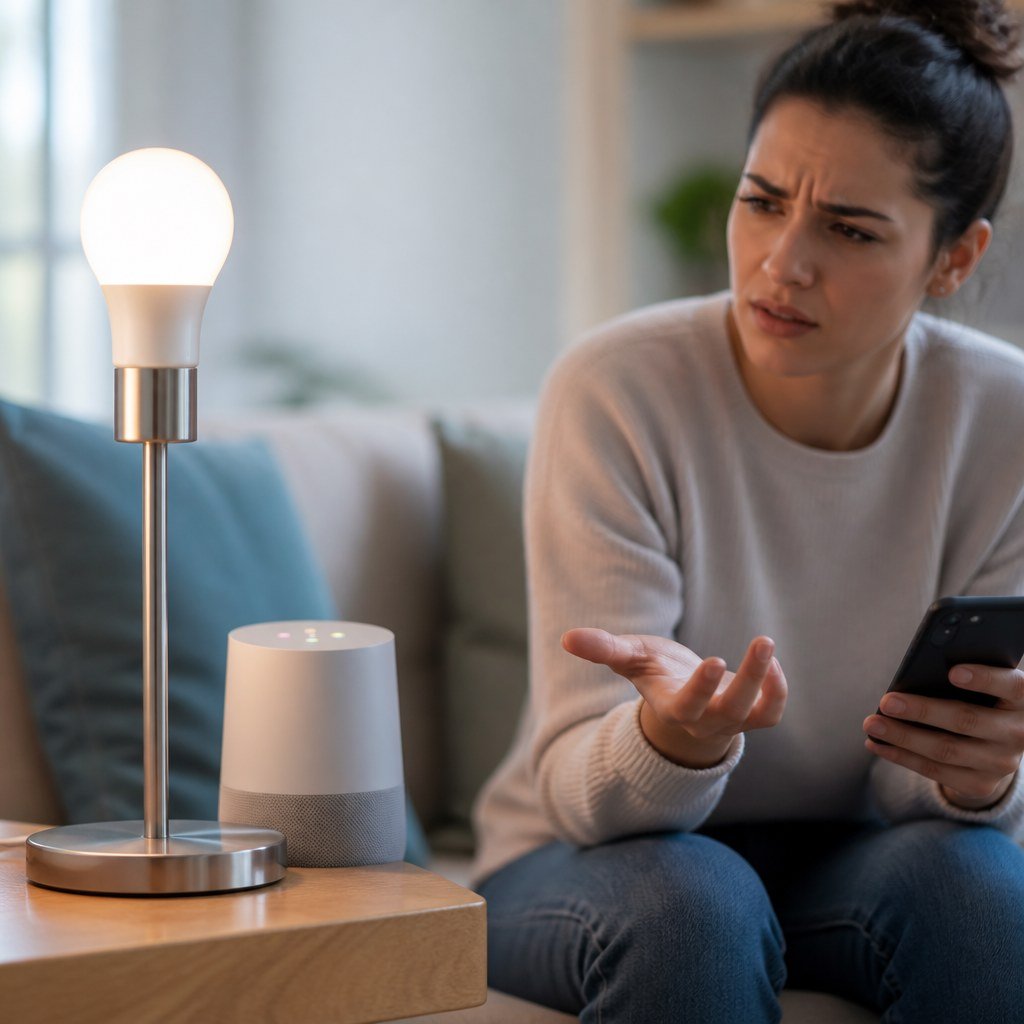
Work through these fixes in order and stop as soon as voice control returns.
- Confirm the fixture’s wall switch is on and the bulb is seated securely. Do not touch a hot bulb; switch it off and let it cool first.
- Say the command once using the exact bulb name shown in your voice-assistant app. Avoid names that sound alike, such as “desk light” and “desk lamp.” Rename one device if the assistant chooses the wrong light.
- Check that the bulb appears in the correct home and room. A bulb left in an old home profile may work through its own app yet fail in a room command such as “turn off the bedroom.”
- Restart the bulb with one normal power cycle. Switch it off, wait briefly, then switch it on. Avoid repeated rapid toggling because some bulbs use a toggle sequence for factory reset.
- Restart the voice speaker or display, then restart any required bridge or hub. If the bulb uses Wi-Fi directly, restart the router after other people have saved active work.
- Open the voice-assistant app and inspect the bulb’s status. Run device discovery if the platform offers it. For a linked manufacturer account, confirm you are signed into the same account that contains the working bulb.
- Disable and reconnect the manufacturer’s voice service only if app control still works but discovery fails. Reconnecting may rebuild device records, rooms, or routines, so check them afterward.
- Install available bulb, hub, speaker, and app updates from their official apps. Keep the bulb powered during a firmware update.
- Factory-reset the bulb only as the last setup fix. Reset sequences differ by model, so use the manufacturer’s current support instructions rather than guessing a switch pattern.
💡 Tip: Take screenshots of the bulb name, room, routines, and linked service before removing anything. They make setup much easier to rebuild.
Could Wi-Fi or a hub be the cause?
Yes—an offline network path can leave a powered bulb unable to receive a voice command.
Check the product’s official documentation to learn whether it connects through Wi-Fi, Bluetooth, a proprietary bridge, or a Matter controller. For a Wi-Fi bulb, confirm your current router settings match the bands and security modes the manufacturer currently lists. Some models require a particular Wi-Fi band during setup.
For a bridged bulb, verify that the bridge has power and network access. For Matter, check that the bulb still appears under the intended home and controller. Do not delete a working device merely because a second ecosystem cannot see it; first inspect sharing or multi-admin options supported by your current platforms.
If the bulb works near the router but disconnects in its usual fixture, signal strength or interference is a stronger suspect. Our smart lighting setup advice and Smart Home Lab coverage of mesh Wi-Fi placement provide useful decision points without assuming a new router is necessary.
How do you verify the repair?
Test the bulb three ways so a partial fix does not fool you.
- Control the bulb from its manufacturer’s app.
- Ask for the bulb by its exact device name.
- Ask for the room, group, scene, or routine that normally includes it.
Try both on/off and brightness commands if the bulb supports dimming. If direct commands work but a routine fails, edit the routine and reselect the bulb. A stale routine may still point to the device record that existed before reconnection.
Renters who need the wall switch left accessible may also find our renter-friendly smart home upgrades useful for avoiding accidental shutoffs.
When is replacement or professional help sensible?
Replace the bulb only after it also fails in its own app or in a known-good compatible fixture.
Choose a replacement if the bulb repeatedly drops offline after a documented reset, other devices remain stable, and the manufacturer no longer provides a workable setup path. Before buying, check the current manufacturer listing for fixture type, dimmer compatibility, platform support, and hub requirements.
⚡ Safety: Stop using a fixture that buzzes, smells hot, sparks, shows scorching, or trips a breaker. Turn off the circuit if you can do so safely and ask a licensed electrician to inspect it. Do not open the fixture wiring or smart bulb.
A wall dimmer can also cause unstable behavior when the bulb or fixture is not rated for that combination. Check both manufacturers’ instructions. If compatibility is unclear, leave electrical changes to a licensed electrician.
Start with the app-control test, then use the Domoviq tools hub if you need help checking the rest of your smart-home setup.