How to Set Up a Smart Home Step by Step in 2026
Setting up a smart home comes down to four steps: pick one ecosystem, get your Wi-Fi ready, add devices one room at a time, and only then start building automations. You don’t need to buy a hub, rewire anything, or plan the whole house on day one — most people get a working setup in an afternoon by starting small and expanding as they go.
Here’s the step-by-step version, including which ecosystem to pick, what to buy first, and how to avoid the mistakes that make beginners give up halfway through.
What do you need before you start setting up a smart home?
A reliable 2.4GHz Wi-Fi connection and a smartphone are the only hard requirements. Almost every consumer smart home device — plugs, bulbs, sensors, cameras — connects over 2.4GHz Wi-Fi rather than 5GHz, so if your router hides that band or your signal is weak in some rooms, fix that first. A mesh router or a Wi-Fi extender solves most connectivity headaches before they start.
Beyond that, you need an account with whichever ecosystem you choose (Amazon, Google, or Apple all work with a free account you likely already have), and a rough idea of which rooms or problems you’re trying to solve first — lighting, security, or climate control usually wins as a starting point because the devices are cheap and the payoff is immediate.
Which smart home ecosystem should you pick first?
Pick based on the phone in your pocket, not the “best” ecosystem on paper. Apple Home works best if everyone in the house has an iPhone; Google Home fits Android households; Amazon Alexa is the most device-agnostic and usually the cheapest to start with. All three now support Matter, so switching later is less painful than it used to be, but starting in the right lane saves setup time now.
| Ecosystem | Best for | Setup difficulty | Typical starting cost |
|---|---|---|---|
| Amazon Alexa | Widest device compatibility, budget shoppers | Easy | $20–$50 for a speaker |
| Google Home | Android users, Nest device owners | Easy | $30–$60 for a speaker/display |
| Apple Home | iPhone households, privacy-focused users | Moderate | $0 if you own an iPhone; a HomePod mini or Apple TV helps |
| Home Assistant | Tinkerers who want full local control | Advanced | $50–$150 for a mini PC or dedicated hub |
How do you connect your first smart home devices?
Start with one device type in one room, confirm it works reliably for a few days, then expand. Trying to set up ten devices across the whole house in one sitting is the single most common reason beginners get frustrated and quit.
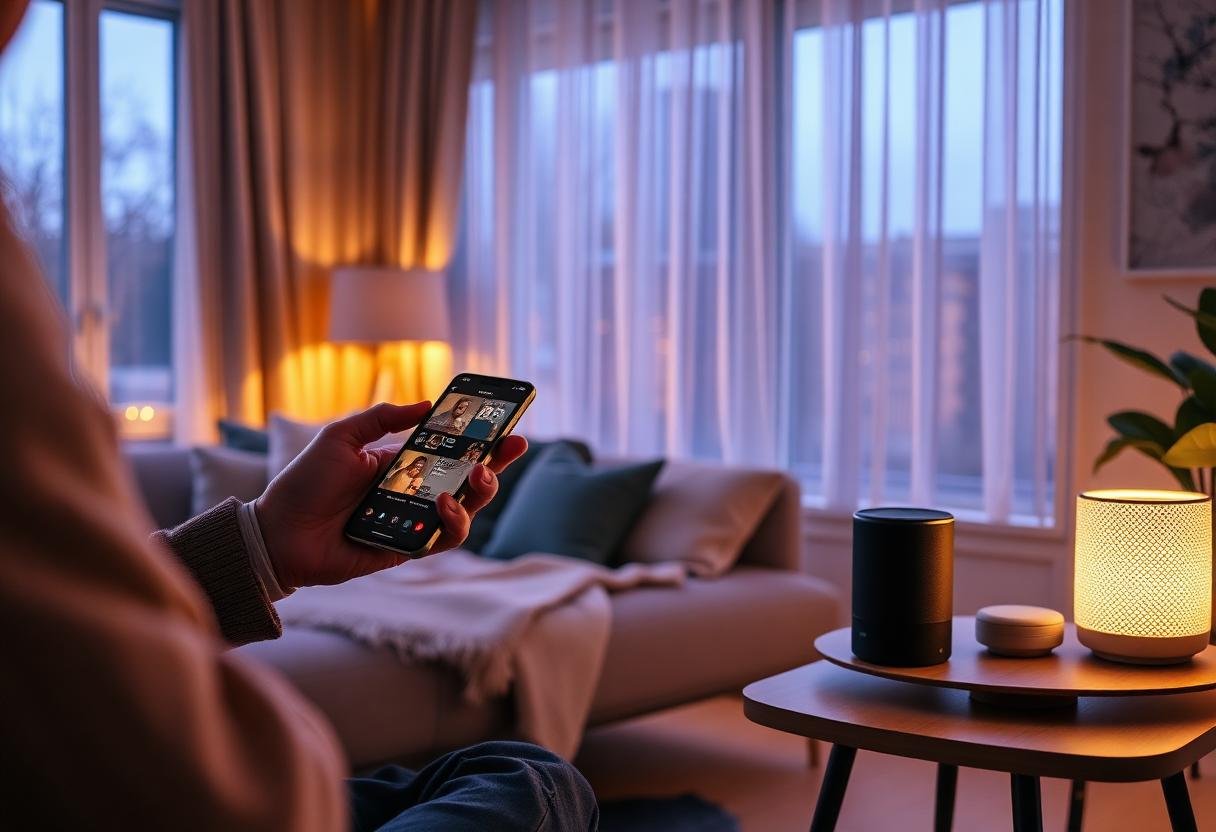
- Download your ecosystem’s app (Alexa, Google Home, or Apple Home) and create or sign into your account.
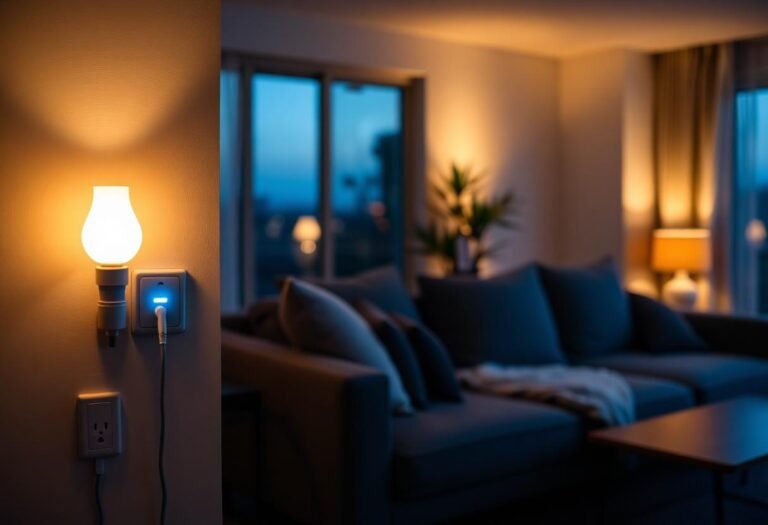
- Plug in or install your first device — a smart plug or bulb is the easiest starting point.
- Open the app, tap “Add device,” and follow the QR-code or Bluetooth pairing prompts.
- Rename the device to match its actual location (“Kitchen Lamp,” not “Plug 1”) so voice commands and automations make sense later.
- Test it with a voice command and through the app before adding the next device.
Repeat that pattern room by room. Most people can fully outfit a starter room — lights, one plug, one sensor — in under 30 minutes once the app and account are set up.
Do you need a hub to set up a smart home?
No — not for a first setup. Wi-Fi-based devices (most smart plugs, many bulbs, and budget cameras) connect directly to your router and work through the Alexa, Google Home, or Apple Home app with no extra hardware. A dedicated hub only becomes worthwhile once you add Zigbee or Z-Wave devices — locks, some sensors, and higher-end lighting — which need a hub or a Thread border router to talk to your phone. If that point comes, an Apple TV 4K, a Google Nest Hub, or an Amazon Echo (4th-gen or newer) can double as that hub, since each one also functions as a Thread border router for Matter devices — see our guide to the best smart home hub for Matter for specifics.
How do you build automations after the basic setup?
Wait until your devices have run reliably for at least a week before building automations on top of them. Automations amplify whatever’s already there — a flaky Wi-Fi connection turns into a light that “randomly” doesn’t turn on, and it’s much easier to debug one device at a time than an automation with five triggers.
Once things are stable, start with the automations that save the most daily friction: lights that turn on at sunset, a thermostat that drops a few degrees overnight, or a “leaving home” routine that locks the door and turns everything off. Add motion-triggered lighting and multi-device routines only after the simple ones have run without a hitch for several days.
How long does it take to set up a smart home, realistically?
A basic starter setup — app, account, and 2–3 devices — usually takes 30 to 60 minutes. A full-home rollout with 15–20 devices across multiple rooms typically stretches across several weekends, not because the pairing process is slow but because troubleshooting one balky device (usually a Wi-Fi or firmware issue) eats most of the time. Budget for that instead of expecting a single afternoon to finish the whole house; our breakdown of a starter kit under $200 is a reasonable scope for a first weekend.
Frequently asked questions
Can I mix Alexa, Google Home, and Apple Home devices?
Yes, to a point. Matter-certified devices can be added to more than one ecosystem’s app, but voice control and automations still run separately in each app — you don’t get one unified automation engine unless you add a Matter controller or a platform like Home Assistant on top.
What’s the cheapest way to start setting up a smart home?
A single smart plug (around $10–$15) paired with an app-only setup — no speaker required — is the cheapest functional starting point. It proves out your Wi-Fi and app setup before you spend more on bulbs, sensors, or a hub.
Do smart home devices work if the internet goes down?
Most cloud-based devices lose remote access and voice control during an outage, though many still respond to local app control or physical switches. Matter and Thread-based setups with a local hub hold up better, since some processing happens on the local network rather than a manufacturer’s cloud.
Should I set up security devices or convenience devices first?
Convenience devices — plugs, bulbs, a smart speaker — are the easier starting point because mistakes cost nothing. Save locks, cameras, and alarm sensors for once you’re comfortable with the app and your Wi-Fi has proven stable, since a dropped connection matters more when it’s guarding your front door.
Last updated: September 2026.
Next: if you’re still choosing hardware, see our best budget smart home starter kit under $200, and if you outgrow Wi-Fi-only devices, check the best smart home hub for Matter.