Robot Vacuum Won’t Connect to Wi-Fi — Here’s the Fix
Start by connecting your phone to the 2.4 GHz Wi-Fi band, disabling mobile data and VPN temporarily, and placing the robot near the router. Then restart the router and vacuum, re-enter the password, and run the app’s pairing process. If that fails, reset only the robot’s Wi-Fi settings.
By Olami Y.
Last updated October 26, 2026
What should you check first?
Check the network band, password, signal, and app permissions before resetting anything.
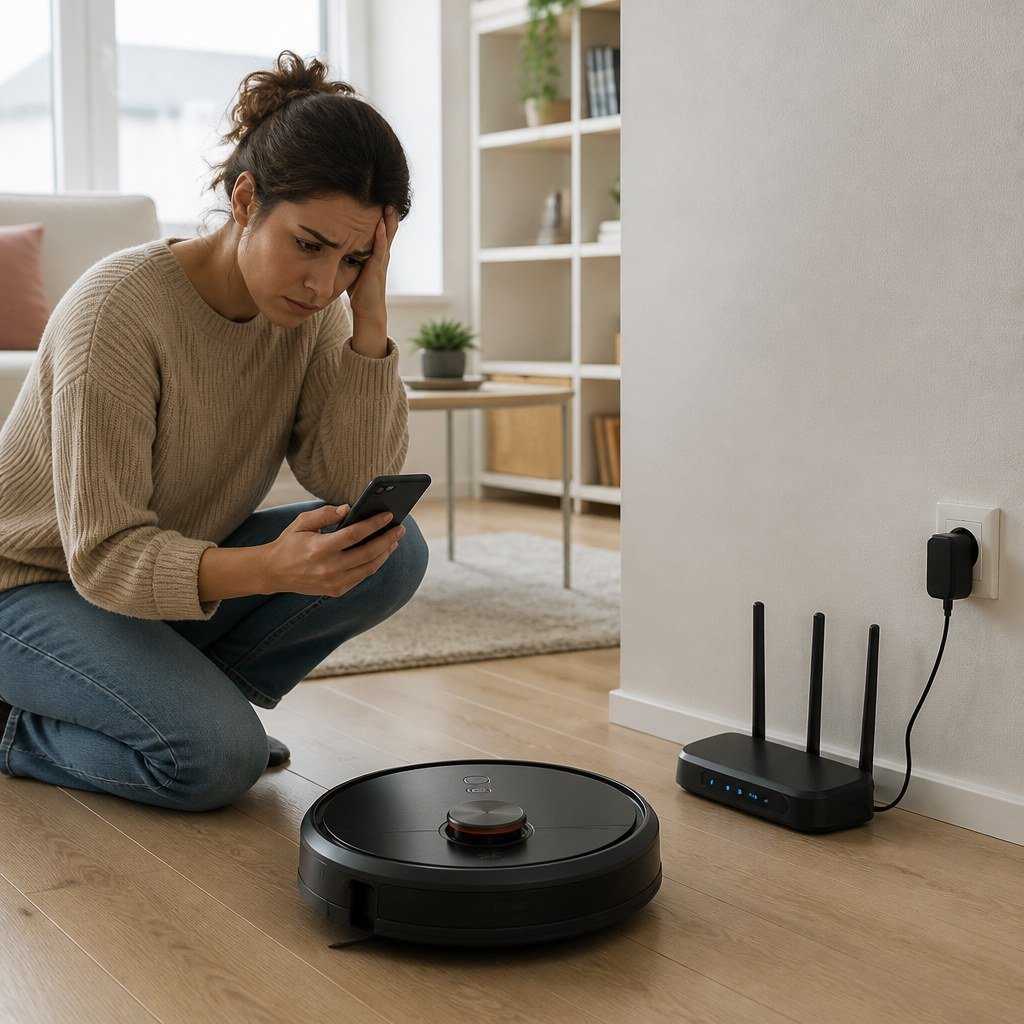
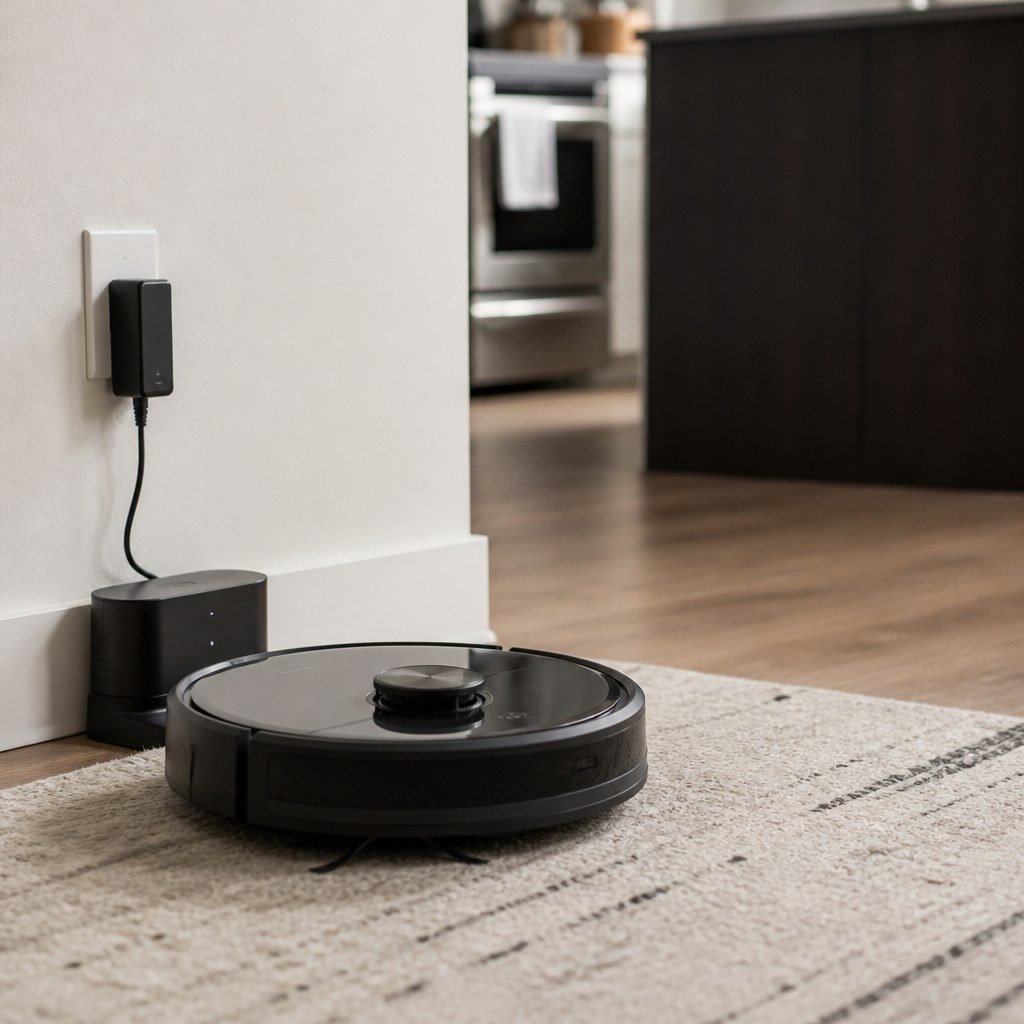
Keep the robot on its charging dock or make sure it has enough battery to finish setup. Place it in the same room as the router. Pairing can fail even when the robot would have adequate coverage during normal cleaning.
- Confirm that your phone is connected to your home Wi-Fi rather than cellular data.
- Check whether the robot’s manual or current manufacturer support page requires a 2.4 GHz network.
- Type the Wi-Fi password again instead of pasting it from a password manager. Watch for capital letters, spaces, and similar-looking characters.
- Turn off your phone’s VPN, private relay feature, or automatic mobile-data switching until setup is complete.
- Enable Bluetooth, location access, and local-network access if the app requests them.
- Restart the robot, phone, and router. Wait until the router has fully reconnected before opening the vacuum app.
Why does the Wi-Fi band matter?
Many robot vacuums use 2.4 GHz Wi-Fi because the hardware is designed for that band, but requirements differ by model.
A dual-band router may broadcast 2.4 GHz and 5 GHz under one network name. That usually works, but some pairing systems struggle when the phone connects through 5 GHz while the vacuum expects 2.4 GHz.
Open your router app or administration page and check whether you can select the 2.4 GHz band temporarily. If your router offers a dedicated Internet of Things network, use it only if it provides 2.4 GHz service and allows devices on your main network to communicate with it.
Also check the security mode. Older models may not join a WPA3-only network. Do not weaken your entire network based on a guess; confirm supported security modes in the vacuum maker’s documentation. Choose a separate compatible IoT network if your router provides one. Our smart home hub compatibility coverage explains the same network-separation issue for other connected devices.
Which phone settings can block pairing?
The app may need temporary access to nearby devices and your local network to find the vacuum.
On iPhone, check the app under Settings and allow Local Network, Bluetooth, and Location if requested. On Android, review the app’s permissions for nearby devices and location. The labels vary by phone and operating-system version.
Update the vacuum app from your phone’s official app store, then sign in with the account and regional setting associated with the device. A secondhand or previously registered vacuum may still be attached to another account. In that case, the former owner or manufacturer support may need to remove it.
Do not use a guest Wi-Fi network unless the router allows local device communication. Guest isolation often prevents your phone from discovering another device on that network. This is also useful to remember when reading our smart camera setup guidance and smart speaker compatibility advice.
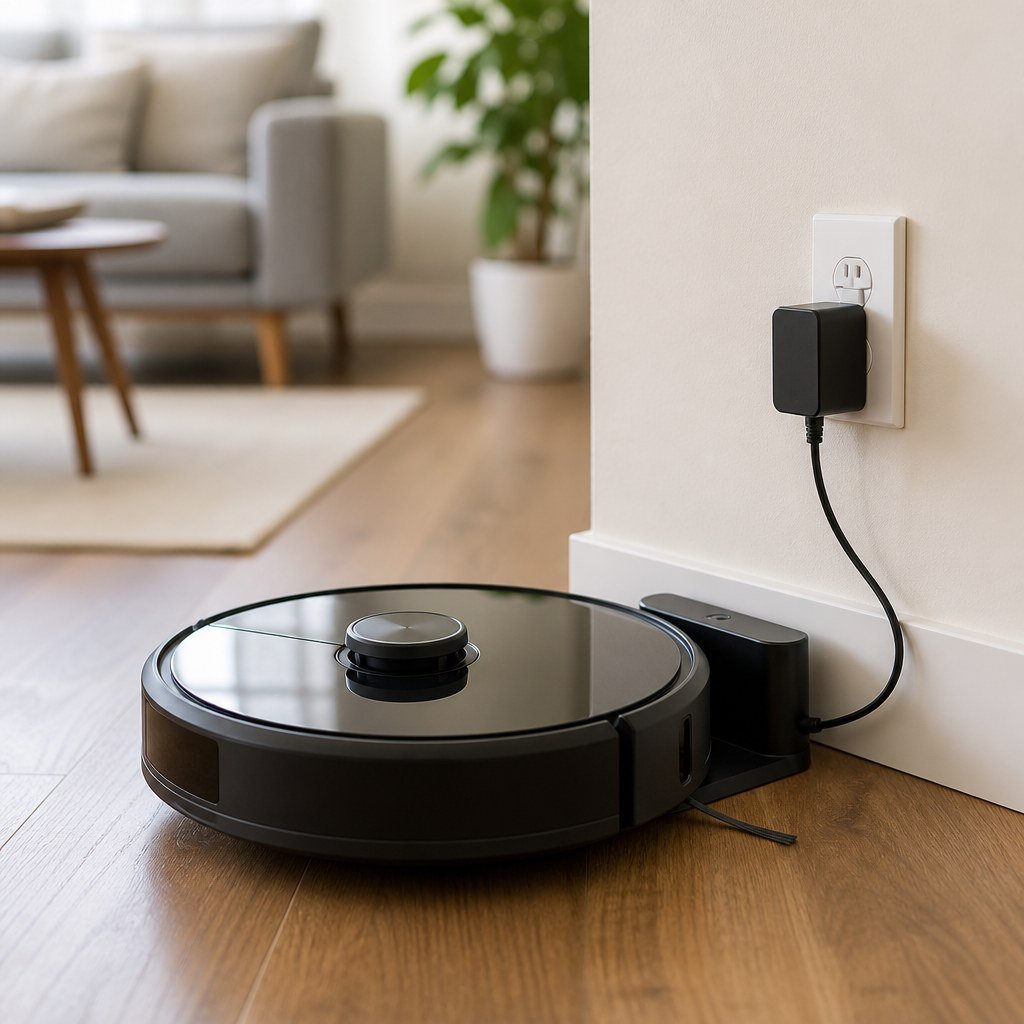
How do you pair the vacuum again?
Clear the failed connection, restart in order, and complete pairing without leaving the app.
- Remove the incomplete device entry from the app if one appears.
- Use the model-specific button combination to reset Wi-Fi only. Check the manual because the controls and indicator patterns differ.
- Restart the router and wait until your phone has internet access again.
- Return the robot to pairing mode and confirm that its Wi-Fi indicator matches the pattern shown in the app.
- Select the 2.4 GHz network when the app presents a choice, then enter its password manually.
- Keep the app open and leave the phone beside the vacuum until setup reports success.
If setup stops at the same percentage each time, reinstalling the app may clear damaged setup data. Save any account details first. Use a factory reset only after checking what it deletes for your model.
How do you know the connection is fixed?
The vacuum is properly connected when it remains available after your phone leaves the setup screen.
Send it on a short cleaning run from the app, return it to the dock, and change one harmless setting such as the suction level. Close and reopen the app to confirm that the device still appears online. Then restore your VPN or mobile-data settings.
If the robot disconnects only in distant rooms, you have a coverage problem rather than a pairing problem. Move the router to a more open position or consider a mesh access point that supports the vacuum’s required band. Our Wi-Fi placement guidance and renter-friendly smart home setup ideas can help without drilling or running permanent cable.
Contact the manufacturer if the vacuum never enters pairing mode, rejects every known-compatible network, or shows a persistent hardware error. Provide the model number, app version, phone operating system, router model, and the exact step where setup fails.
Common Wi-Fi questions
Will a robot vacuum work without Wi-Fi?
Most models can still start basic cleaning from a physical button, but app controls may be unavailable. Check the manual for offline functions because mapping and scheduling behavior varies.
Can I connect it through my phone’s hotspot?
Possibly, but setup often requires one phone to run the app and another device to provide the hotspot. A hotspot is useful as a test, not an ideal permanent network.
Why did it disconnect after I changed routers?
The vacuum still has the old network credentials. Give the new router the previous network name and password, or reset the vacuum’s Wi-Fi and pair it with the new details.
Start with the band and permission checks above, then use the Domoviq tools hub for your next smart-home setup decision.