Smart Home App Shows “Offline” But the Device Still Works Locally — Why
An “offline” label usually means the app or vendor cloud cannot reach the device, while its local radio, hub connection, or stored automation still works. The Connectivity Standards Alliance explains that Matter uses local IP networking, so supported commands can continue at home even when internet or cloud access fails.
By Olami Y.
Last updated November 07, 2026
How can an offline device still work?
Your device can have separate local and remote communication paths, and only the remote path may be broken.
Pressing a physical switch, using a nearby Bluetooth connection, or sending a command through a home hub does not necessarily involve the manufacturer’s servers. A smart bulb may therefore respond to its wall control or local automation while its app reports that the bulb is offline.
The label can also describe the app’s last known cloud status rather than the device’s actual power or network state. If the app has not received a recent status update, it may show stale information even though local commands still reach the device.
This split is common in systems that support local control. Our guide to smart home hub compatibility covers the same distinction: a hub can process supported commands inside your home, while remote access usually needs an internet connection and working cloud service.
What usually causes the mismatch?
Start with the internet and cloud path because local operation already proves that at least part of the device is functioning.
Internet or router trouble
The device may reach your hub or LAN but fail to contact the vendor’s cloud because your internet connection, DNS service, router rule, or guest-network isolation changed.
A cloud outage
The manufacturer’s service can be unavailable while your equipment remains powered and connected locally. Check the official service-status page if one is available.
An app or account problem
An expired sign-in, outdated app, missing permission, or delayed status refresh can produce an offline message without changing the device itself.
A hub lost cloud access
Zigbee, Z-Wave, Thread, or another local radio may still connect the device to its hub even though the hub cannot reach the internet.
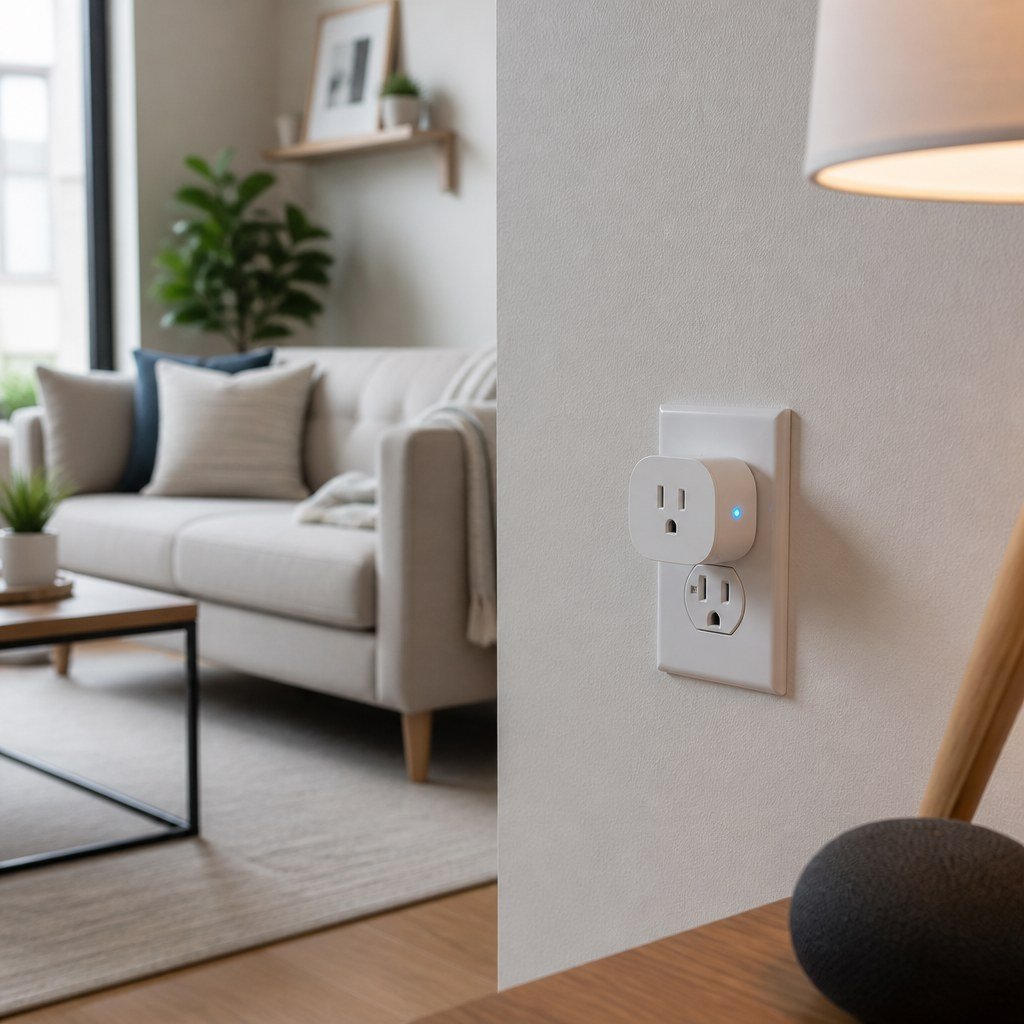
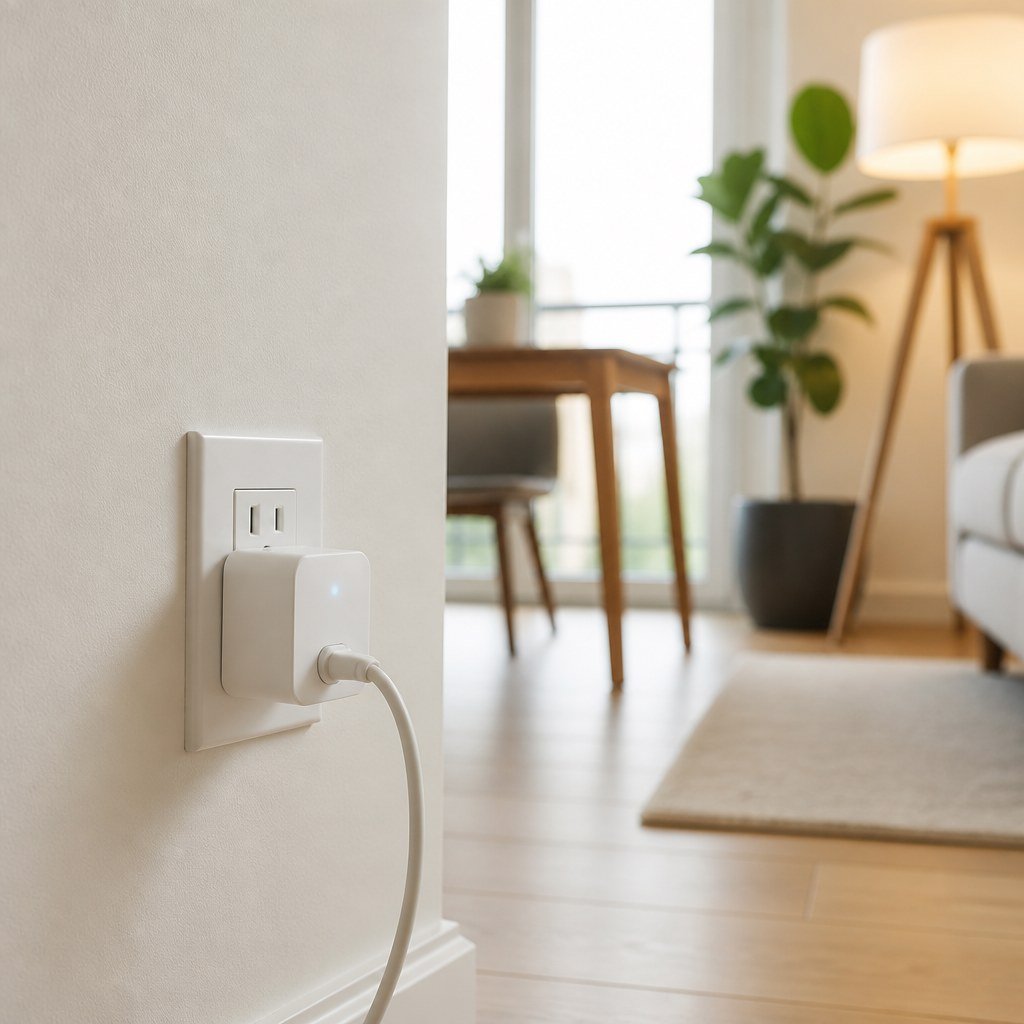
Weak Wi-Fi remains possible, especially if local operation comes from a physical control rather than the network. Our Wi-Fi smart plug troubleshooting coverage explains why signal strength, band settings, and network names matter for Wi-Fi devices.
How do you find the failed connection?
Test each part in order so you do not factory-reset a device that only needs an app refresh.
- Operate the device with its physical button or normal wall control and confirm that it has power.
- Connect your phone to the same home Wi-Fi network and try the manufacturer’s app again.
- Try a local automation, hub dashboard, or compatible voice controller if your setup supports local commands.
- Turn off Wi-Fi on your phone and test through cellular data. Failure here points toward remote access, the cloud service, or your account.
- Check whether other devices from the same brand appear offline. Several failures at once suggest a hub, router, account, or service issue.
- Open the manufacturer’s official status page and check for an active incident before changing settings.
- Confirm that the phone app and hub firmware are current according to their official update screens.
If only 1 device is affected, inspect its signal quality and power source. If every device is affected, focus on the router, hub, internet connection, and account.
What should you fix first?
Use the least disruptive fix first and preserve your device pairing if possible.
- Force-close the app, reopen it, and refresh the device screen.
- Sign out and back in if other household members can see the device but you cannot.
- Restart the affected hub or bridge using the manufacturer’s documented method.
- Restart your modem and router, then wait until internet service is fully restored before retesting.
- Check whether router security, guest-network isolation, DNS filtering, or a recently enabled VPN blocks the device or hub.
- Move a Wi-Fi device closer temporarily, or improve mesh placement, to rule out a weak signal.
Avoid deleting the device or performing a factory reset until you have checked the vendor’s instructions. A reset can erase schedules, pairings, access codes, and automations. This matters most for locks, alarms, cameras, and other security equipment.
How do you know the problem is solved?
A complete fix restores status updates as well as local and remote commands.
- The app changes from offline to online without repeated refreshing.
- Commands work while your phone is connected to home Wi-Fi.
- Commands also work over cellular data if the product provides remote access.
- Automations run at their expected time or trigger.
- The app reports recent state changes, such as open, closed, on, or off.
If local control is enough for your needs, a temporary cloud outage may require no action. Choose local-first equipment if you want core controls to survive internet loss. Choose cloud-dependent equipment only if its remote features matter more to you. Our local-control smart home planning and renter-friendly smart home setups can help frame that trade-off.
When should you contact support?
Contact the manufacturer when the service is operational but the app stays offline after the network and account checks.
Before opening a ticket, record the model, app version, hub firmware version, router model, LED pattern, and time the problem occurred. State whether physical control, same-network control, and cellular remote control work. That distinction gives support a clear map of the failed path.
For your next action, run the same-network and cellular tests now, then note exactly where control stops.
Use the Domoviq tools hub when you need help checking the rest of your smart home setup.